
bellhop by actabl
Popover

When to use

Use popovers to display supplementary information or help text without cluttering the interface.

Contextual Help

Provide additional information about form fields or features.

Feature Descriptions

Explain features or functionality on demand.

Quick Tips

Show helpful hints or guidance without interrupting workflow.

When not to use

  • For simple tooltips—use tooltip component
  • For modal dialogs requiring full attention—use modal
  • For permanent content—display inline
  • On mobile where popovers can be awkward—consider using modals

Variants

Popovers come in two variants with flexible content options.

Default (No Title)

Popover with content only.

Trigger This is helpful information that appears when you need it.

With Title

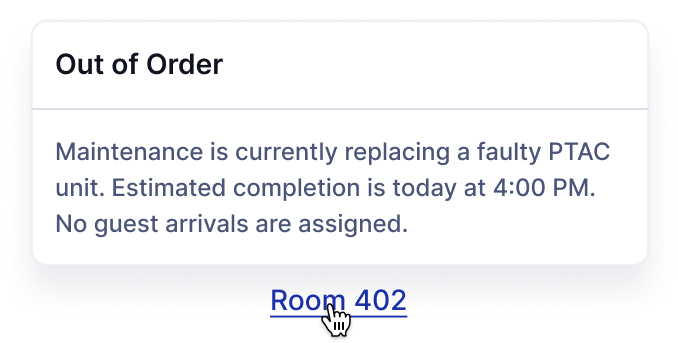
Popover with title and content.

Trigger This popover includes a title for additional context about the information displayed.

Content Examples

Popovers adapt to different content lengths and width requirements.

Short Content

Brief information snippet.

Trigger Keep it short and simple.

Long Content

Multiple sentences with more detail.

Trigger This feature allows you to customize your experience with advanced options. You can adjust settings based on your preferences and requirements. Additional configuration may be available in the settings panel.

Narrow Width

Compact popover width.

Trigger Compact info display.

Wide Width

Expanded popover width.

Trigger This wider popover provides more space for detailed explanations and longer content that requires additional width for optimal readability.

Interactive Examples

See how popovers work in real-world scenarios.

Help Icon

Info icon with helpful tooltip.

Email Address Enter a valid email address in the format: [email protected]

Info Button

Clickable info button with details.

More Info This feature is available on all paid plans. Upgrade to access advanced customization options and priority support.

Best Practices

Follow these guidelines when using popovers.

Do

  • Use popovers for non-essential, supplementary information
  • Keep content concise and scannable
  • Include a clear title when content needs context
  • Position popovers to avoid covering important UI elements
  • Make trigger elements clearly identifiable

Don't

  • Don't use popovers for critical information
  • Don't put interactive elements inside popovers
  • Don't use popovers when a tooltip would suffice
  • Don't make popover content too long or complex
  • Don't show multiple popovers simultaneously

Popover vs Tooltip

Understanding when to use popovers versus tooltips.

Use Popover When:

  • Content is longer than 1-2 sentences
  • You need formatted text or structure
  • A title is needed for context
  • Content requires user interaction to display
  • Information is supplementary but important

Use Tooltip When:

  • Content is very brief (1-2 sentences)
  • Providing simple labels or descriptions
  • Information appears on hover
  • Content is purely informational
  • Space is very limited

Accessibility

Popovers are designed to be accessible to all users.

Keyboard Navigation

  • Tab - Move to trigger element
  • Enter/Space - Toggle popover
  • Escape - Close popover
  • Focus returns to trigger on close

Screen Reader

  • Proper ARIA attributes for role and state
  • Title and content are announced
  • Trigger element has descriptive label
  • Relationship between trigger and popover is clear

Visual Design

  • Sufficient color contrast for text
  • Clear visual connection to trigger
  • Visible focus indicator on trigger
  • Shadow and border for depth perception

Resources

Design and development resources for the Popover component.

Figma

Available
View in Figma →

Web Components/Angular

Available
View in Storybook →

React

Available
View in Storybook →